
Meet Framer: your first project and the editor
Make a safe practice copy, understand Pages, Layers and Assets, and find your way around without changing your live site.
Soidesmax · 4 min read · Updated 2026-10-20
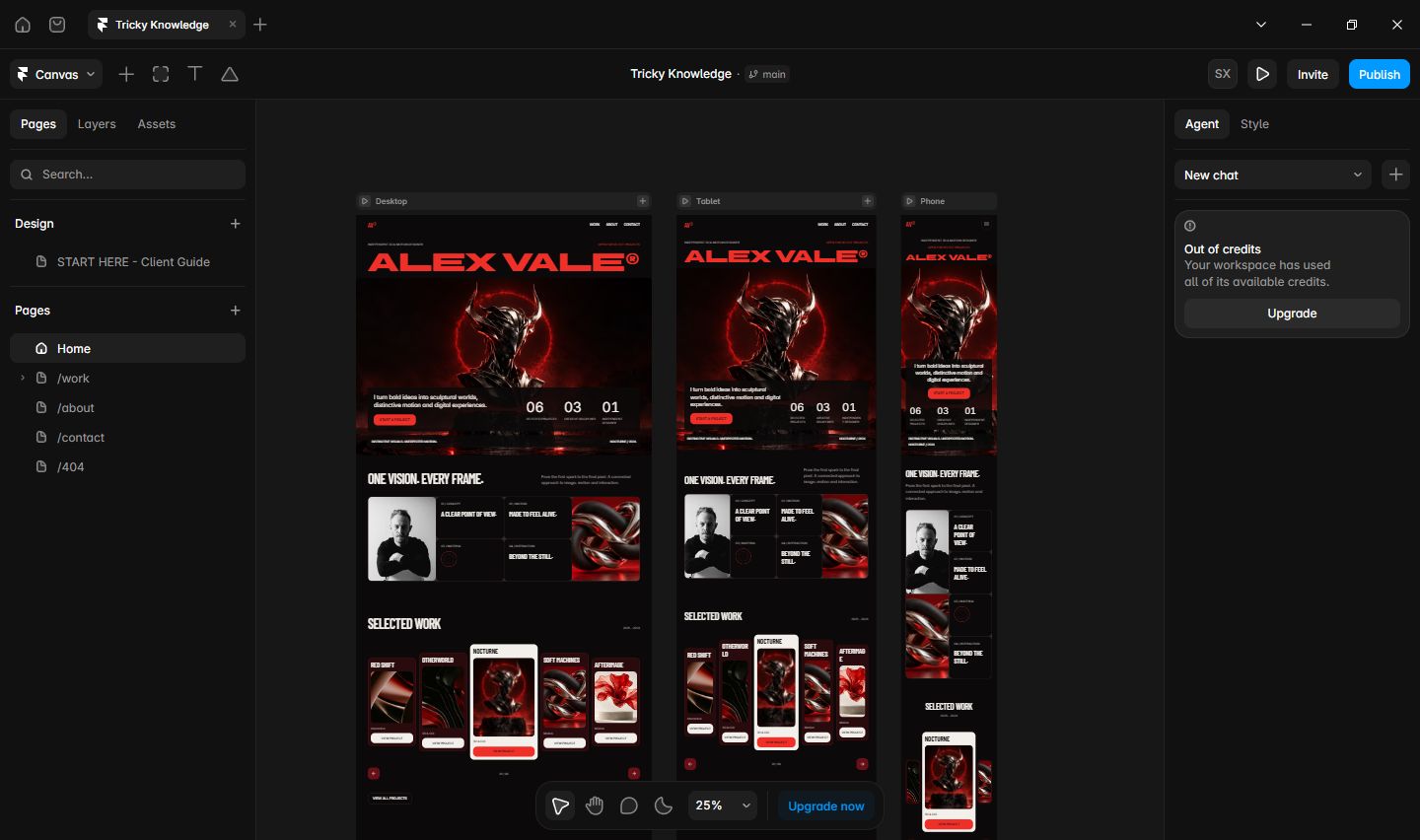
What you will build
Throughout this course, build a small fictional studio website called North Studio: Home, About, Contact, and a Journal. Use invented names and sample messages while learning. This first lesson ends with a practice project you can navigate confidently.
You need a Framer account and either a blank project or the template/remix link provided with your purchase. Buying a template and paying for website hosting are separate decisions. Check the template license before using it for multiple websites.
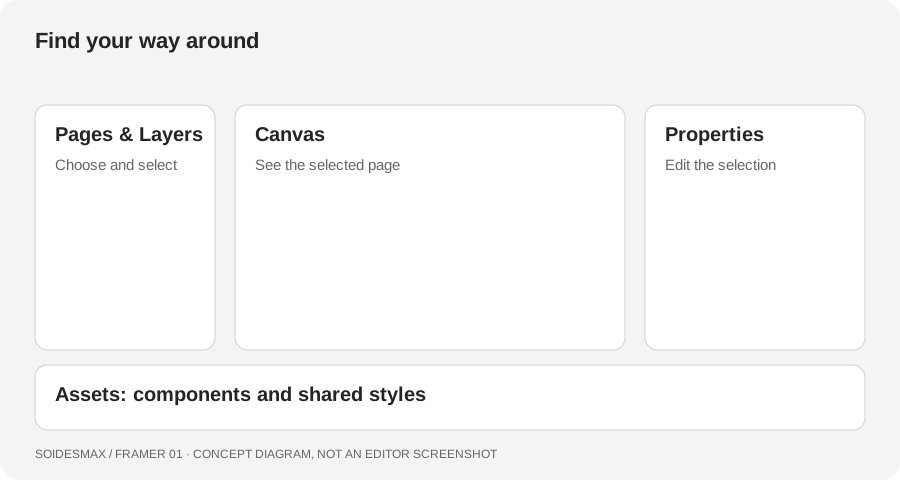
Original learning diagram, not a screenshot of the Framer editor.
1. Create a safe starting point
- Sign in to Framer in a supported browser or the desktop application.
- Open your purchased template's actual remix link. Follow the copy/remix flow into your own workspace. If starting from scratch, create a blank project instead.
- Give the project a recognizable name such as North Studio — Practice. Keep any existing client or live project separate.
- Open the project and wait for the editor to finish loading. Do not publish yet. You can learn the editor without making a website public.
Checkpoint: the project belongs to your workspace and has the practice name. If a link opens a read-only preview rather than an editable project, check the delivery instructions instead of requesting editing access to someone else's source project.
2. Learn the four places you will use
Use Pages to choose which page you are editing. Use Layers to select a specific object inside that page. Expand the layer tree to find nested elements. Use Assets for reusable resources such as components and styles. The middle area is the Canvas; the properties panel changes according to the selected object.
Select a headline on the Canvas, then find the same object in Layers. Next, select its parent container. Notice how the available properties change. This is the most useful habit in Framer: check what is selected before changing anything.
3. Understand what becomes a website
The page boundary matters. Content on a web page can be published; loose reference objects elsewhere on the Canvas are not automatically part of that page. Web Pages are for ordinary destinations. CMS Pages repeat a layout for content items. Design Pages are useful for unpublished design work. Do not put your About content on a Design Page and expect a public About URL.
4. Make one reversible edit
Select the main headline's text layer and change it to Independent design for growing teams. Undo once, then redo. Give the layer a useful name if it was named vaguely. Open Preview, check the headline, then close Preview to return to editing.
When something looks wrong
- The wrong object changes: use Layers to select the exact child, not its parent.
- You cannot type: a container or component instance may be selected. Find the text layer or exposed text property.
- A page seems missing: return to Pages and check the page type before creating duplicates.
Before moving on
You should be able to locate Home, select its headline through Layers, find Assets, and enter/exit Preview. Write down which project is your practice copy. In the next lesson, you will make that page work at different widths.
Official references
Reviewed October 20, 2026. Editor labels can evolve.